Configure X509 Certificate Authentication
FMR supports X509 client certificate authentication in PKCS#12 format by using the web application server's certificate authentication features. This guide explains how to configure this with Apache Tomcat and how to link authenticated certificates to users and organisations in Fusion Metadata Registry.
Note
The web application server must already be configured for HTTPS before X509 client certificate authentication can be used.
When a request reaches FMR, Tomcat authenticates the client certificate first. FMR then maps the authenticated certificate to a user and their associated organisations.
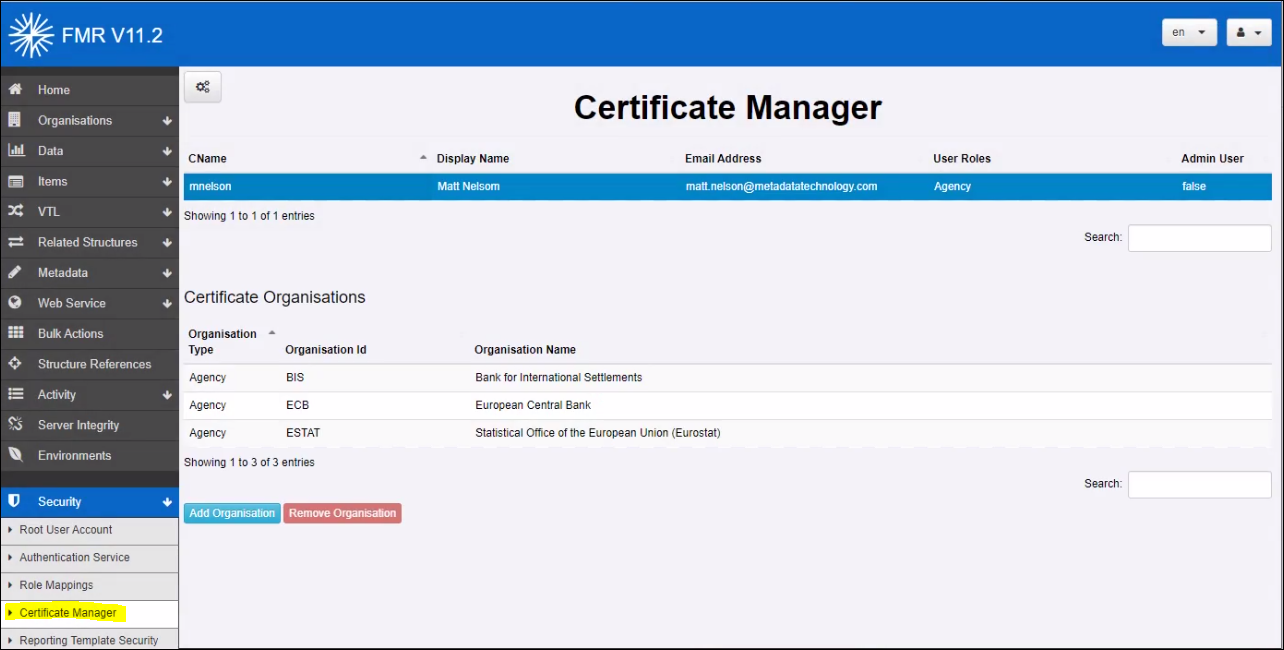
To manage certificate mappings in FMR, sign in as an administrator and go to Security -> Certificate Manager. To create a new certificate definition, select the cogs icon and choose Create New Certificate Definition.
Setup Overview
Configuring X509 client certificate authentication involves four stages:
- Create a client certificate for the user or application.
- Add the certificate to a Tomcat truststore.
- Configure Tomcat to request or require client certificates.
- Map the certificate in FMR so it can be associated with the correct user and organisations.
Generate a Self-Signed Client Certificate
Overview
This section shows how to create a self-signed certificate for testing or internal use. The certificate created here is the client certificate that a browser or application will present when connecting to Tomcat.
Public certificate authorities are typically used for website HTTPS certificates, but a self-signed certificate can also be created locally by using Java Keytool, which is included with the Java JDK.
Self-signed certificates are not trusted by browsers by default because they are not issued by a trusted authority. For internal use, however, they can still be suitable if you control how they are distributed and trusted.
The certificate created in this section is not the same certificate that Tomcat uses for its own HTTPS endpoint. This guide assumes Tomcat is already running over HTTPS with its server certificate configured separately.
Create the Client Certificate
Create a self-signed client certificate for the Fusion Metadata Registry user. The certificate should contain the user's username in the certificate's Common Name (CN).
- Generate a
.p12file that contains both the private key and the certificate.
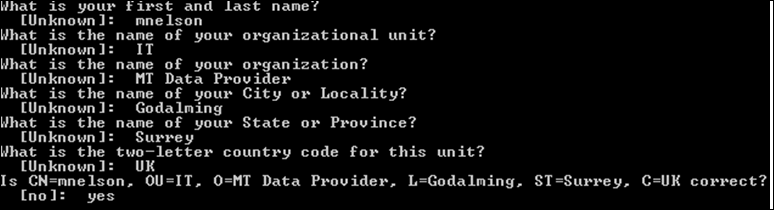
When prompted for certificate details, enter the username in the first and last name field so that it becomes the certificate's CN.
keytool -genkeypair -alias regClient -keyalg RSA -validity 365 -keystore regClient.p12 -storetype PKCS12
- Export the public certificate from the
.p12file to a.cerfile.
keytool -exportcert -alias regClient -keystore regClient.p12 -storetype PKCS12 -file regClient.cer
Configure Tomcat for Client Certificates
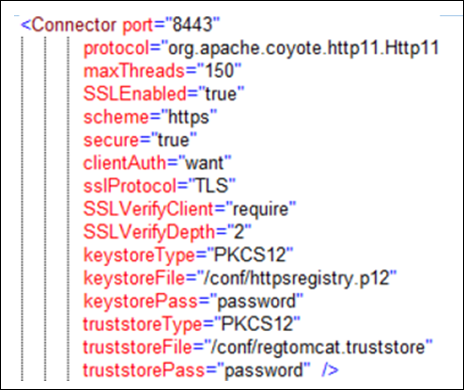
Tomcat can be configured either to require a client certificate for every request or to accept a certificate when one is provided.
- Use
clientAuth="true"to require a certificate for all clients. - Use
clientAuth="want"to allow certificate authentication while still permitting anonymous access or other authentication methods such as Basic Authentication.
To support client certificate authentication, update the server.xml file in Tomcat/conf. The connector configuration controls the keystore, truststore, and whether client certificates are required or optional.
- Create a truststore for Tomcat that contains the client certificate:
keytool -importcert -alias regClient -storetype PKCS12 -keystore regtomcat.truststore -file regClient.cer
-
Place the client
.p12file and the Tomcat truststore in thetomcat/confdirectory for Fusion Registry. -
Update
[tomcat]/conf/server.xmlto reference the truststore and set the appropriateclientAuthvalue.
Link the Certificate to Organisations in FMR
After the certificate has been added to the Tomcat truststore, Tomcat can use it to authenticate incoming requests.
In this setup, Tomcat performs the authentication step. FMR then receives a pre-authenticated request and determines which user and organisation access should be granted.
The mapping is based on the certificate's Common Name (CN). In FMR's Certificate Manager, you define the certificate by its CN and link it to an email address and one or more organisations.
Test the Configuration
To test certificate authentication in a browser:
- Launch the FMR web application.
- Open your chosen browser's certificate settings: Chrome: Manage Certificates Firefox: View Certificates
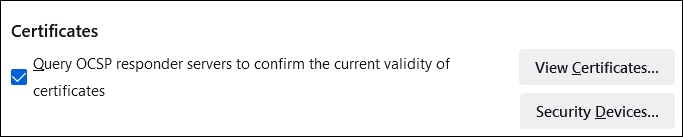

- Import the client certificate into the browser, for example
regClient.p12. - Navigate to the FMR site over HTTPS. If the browser asks which certificate to use, select
regClient.
If the configuration is correct, FMR should show the user as already signed in. Because the request is authenticated by the client certificate, logging out is not available in the same way as with form-based login.
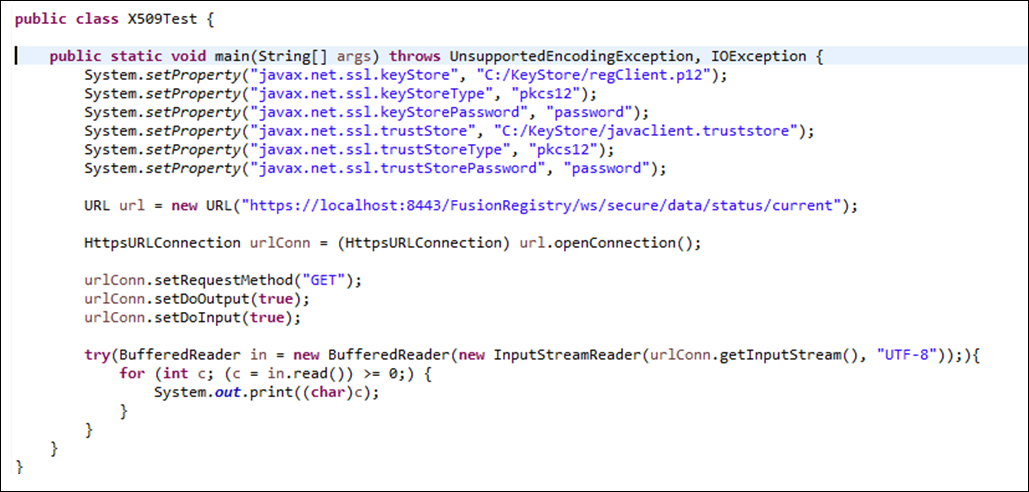
You can also test the setup from code, for example in Java, by calling a secured resource. A successful response in the example shown below is an empty JSON array. If certificate authentication is not working correctly, or if the mapped user does not have sufficient permissions, the response will usually be an error or HTML representing a redirect to the application's home page.
Troubleshooting
If certificate authentication is not working, check the following:
- Remove the following line from
tomcat/conf/server.xmlif it is present:
<Listener className="org.apache.catalina.core.AprLifecycleListener" SSLEngine="on" />
- Make sure the Java version used to create the self-signed certificate matches the Java version used to run Tomcat. Tomcat may report the Java version at startup. If not, check the
JAVA_HOMEorJRE_HOMEenvironment variable.