Configuring LDAP
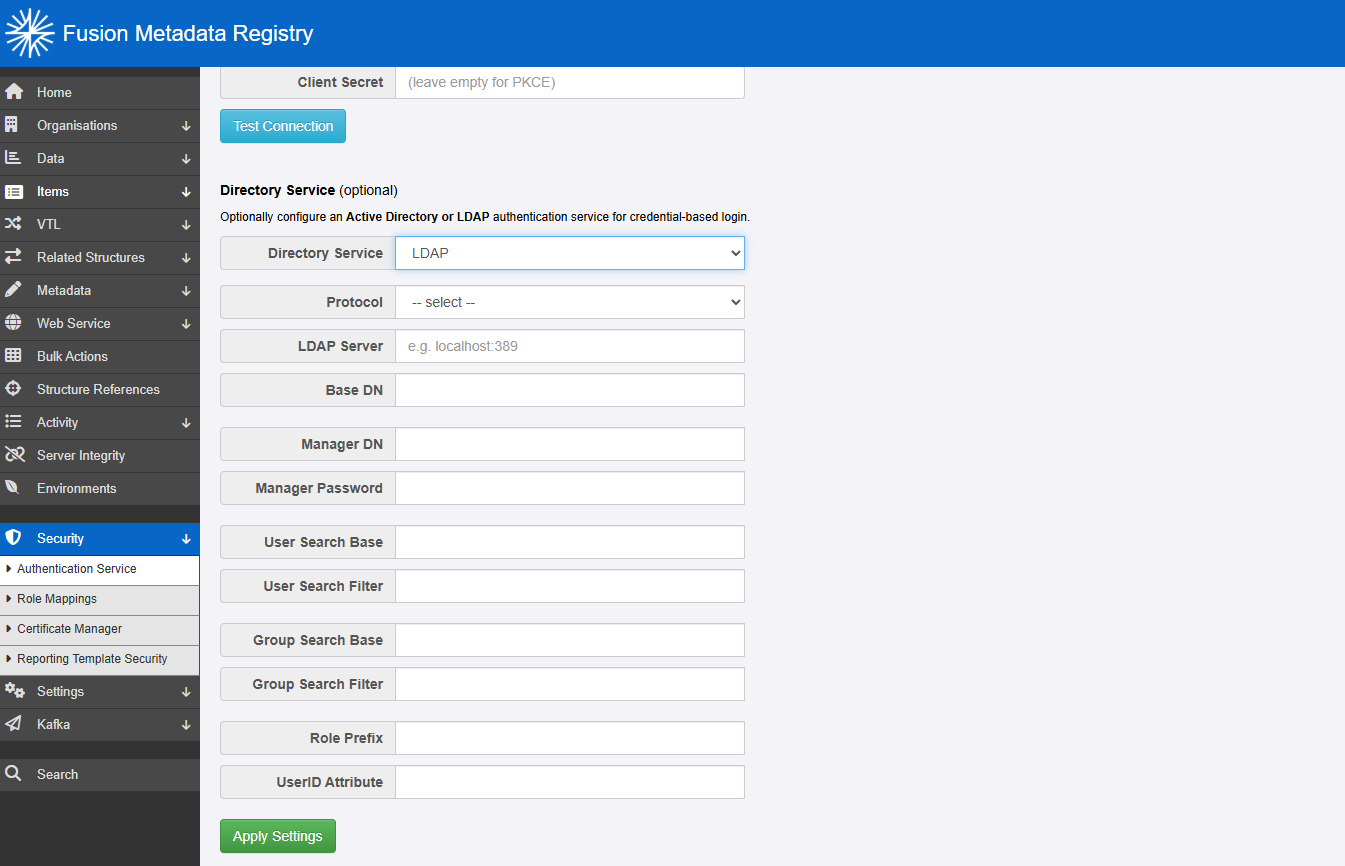
This page explains how to configure Fusion Metadata Registry (FMR) to authenticate users against a generic LDAP directory service.
When LDAP authentication is enabled, FMR connects to the directory, searches for the user entry, and then attempts to authenticate that user using the password supplied at login. In most deployments, the key parts of the configuration are:
- the LDAP server address and protocol (
ldaporldaps) - the Base DN for the directory
- the credentials of a service account that can search the directory
- the user and group search settings
- the attribute used to display the authenticated user in FMR
If the server connection is correct but the search base or search filter is not, users may still be unable to sign in.
Before you start
Before configuring FMR, it helps to confirm the following with your LDAP administrator:
- the host name and port of a reachable LDAP server
- whether the connection should use
ldaporldaps - the Base DN for the directory, for example
dc=example,dc=org - the distinguished name and password of an account that is allowed to search the directory
- where user entries and group entries are located
- which LDAP attribute users will sign in with, for example
uid,mail, or another unique identifier - which group membership attribute is used by your directory, for example
memberoruniqueMember
In most environments you should prefer:
- a DNS host name rather than a raw IP address
ldapsfor production use where available- the narrowest practical user and group search bases
- stable, unique attributes for user identification and lookup
Settings overview
On the page Security -> Authentication Service, choose LDAP. The following settings are then available.
| Setting | Description |
|---|---|
| Protocol and hostname | Mandatory. Select ldap or ldaps, then enter the server name and, if necessary, the port number, for example ldap.example.org:636 |
| Base DN | The base distinguished name from which LDAP searches begin, for example dc=example,dc=org |
| Manager DN | The DN of the service account used by FMR to search the directory, for example cn=admin,dc=example,dc=org |
| Manager Password | The password for the manager account |
| User Search Base | The subtree beneath the Base DN where FMR should search for users, for example ou=people |
| User Search Filter | The LDAP filter used to identify the user entry, for example uid={0} |
| Group Search Base | The subtree beneath the Base DN where FMR should search for groups |
| Group Search Filter | The LDAP filter used to identify groups associated with the user, for example member={0} |
| Role Prefix | Optional. A prefix added to group names before they are treated as granted authorities |
| UserID Attribute | Mandatory. The LDAP attribute that FMR should use as the display identifier for the user, often uid |
How the LDAP lookup works
In a typical LDAP configuration, FMR works in two stages:
- It binds to the LDAP server using the Manager DN and Manager Password so it can search the directory.
- It finds the user entry using the configured User Search Base and User Search Filter, then authenticates that user with the password entered at login.
After a successful authentication, FMR can search for the user's groups and map those groups to FMR roles.
This means that LDAP authentication depends on three things all being correct:
- the service account can connect and search
- the user search returns the correct user entry
- the group search returns the groups you expect to use in FMR role mappings
Base DN and search bases
The Base DN identifies the root of the part of the LDAP tree that FMR should work within.
The User Search Base and Group Search Base are relative to the Base DN. For example:
- Base DN:
dc=metadatatechnology,dc=com - User Search Base:
ou=people - Group Search Base:
ou=groups
In this example, users are searched for under:
and groups are searched for under:
As general LDAP practice:
- keep the Base DN broad enough to include the required part of the directory
- keep the user and group search bases as narrow as is practical
- avoid searching the whole directory unless you genuinely need to
- verify the distinguished names in your directory tools before entering them into FMR
Manager DN
The Manager DN is the service account FMR uses to query the directory.
This account does not normally need administrative control of the directory. It only needs enough permission to:
- search for user entries
- read the attributes used by the User Search Filter
- search for groups and group membership where role mapping is required
As a matter of good practice:
- use a dedicated service account rather than a personal account
- grant the minimum read permissions needed
- manage the password in the same way as other application service credentials
User Search Filter
The User Search Filter tells FMR how to find the user entry in the directory. FMR passes this directly to LDAP, so it must be valid LDAP filter syntax.
The placeholder {0} is replaced with the username entered into the FMR login page.
Common examples include:
The best attribute to use depends on your directory design. In general:
- use an attribute that is unique for each user
- prefer attributes that users already recognise as their login name
- avoid attributes such as display names that may not be unique
- keep the filter simple unless your directory structure requires additional constraints
If the filter is too broad, multiple users may be returned and the login will fail. If the filter is too narrow or references the wrong attribute, the user will not be found.
Group Search Filter
The Group Search Filter determines how FMR finds the groups associated with the authenticated user.
In many LDAP directories, the placeholder {0} is used for the distinguished name of the authenticated user entry. A common example is:
This means FMR searches for group entries whose member attribute contains the distinguished name of the user.
Other directories may use a different membership attribute such as uniqueMember. You should align this filter with however group membership is stored in your LDAP schema.
As general LDAP practice:
- verify the membership attribute used by your directory
- keep the group search base narrow enough to avoid unrelated groups
- check that the resulting group names match the values you intend to use in FMR role mappings
UserID Attribute
The UserID Attribute controls what value FMR displays for the authenticated user.
This is often uid, but it may be a different attribute in your directory. The chosen value should be:
- populated for all users who will sign in
- stable over time
- recognisable to administrators when reviewing user activity
This attribute is not the same thing as the User Search Filter, although in many environments both happen to use the same underlying attribute.
Common configuration approach
For many LDAP environments, a good starting point is:
- Protocol and hostname:
ldaps://ldap.example.org:636 - Base DN:
dc=example,dc=org - Manager DN:
cn=fmr-reader,dc=example,dc=org - User Search Base:
ou=people - User Search Filter:
uid={0} - Group Search Base:
ou=groups - Group Search Filter:
member={0} - Role Prefix: blank
- UserID Attribute:
uid
This works well where:
- users are stored under a dedicated people OU
- groups are stored under a dedicated groups OU
- users sign in with their
uid - groups list user DNs in their
memberattribute
Troubleshooting
If you are having issues with LDAP authentication, work through the following in order:
- confirm that the LDAP server host name, port, and protocol are correct
- confirm that the Manager DN and password are valid
- confirm that the Base DN and search bases point to the correct part of the directory
- test the User Search Filter against a known user
- test the Group Search Filter against a known user who should receive permissions
- if using
ldaps, confirm that the Java runtime used by FMR trusts the LDAP server certificate
For guidance on secure LDAP connectivity and certificate handling, see ConfiguringForLdaps.md.
Enabling debug logging
If you need more detail, review the FMR logs and temporarily increase LDAP-related logging in logback.xml:
<logger name="org.springframework.security" level="DEBUG" additivity="false">
    <appender-ref ref="STDOUT" />
</logger>
<logger name="org.springframework.ldap" level="DEBUG" additivity="false">
    <appender-ref ref="STDOUT" />
</logger>
These logs can help identify:
- bind failures for the manager account
- user search filters that return no results or too many results
- group searches that do not return the expected memberships
- TLS and certificate problems when using
ldaps