About FMR Workbench
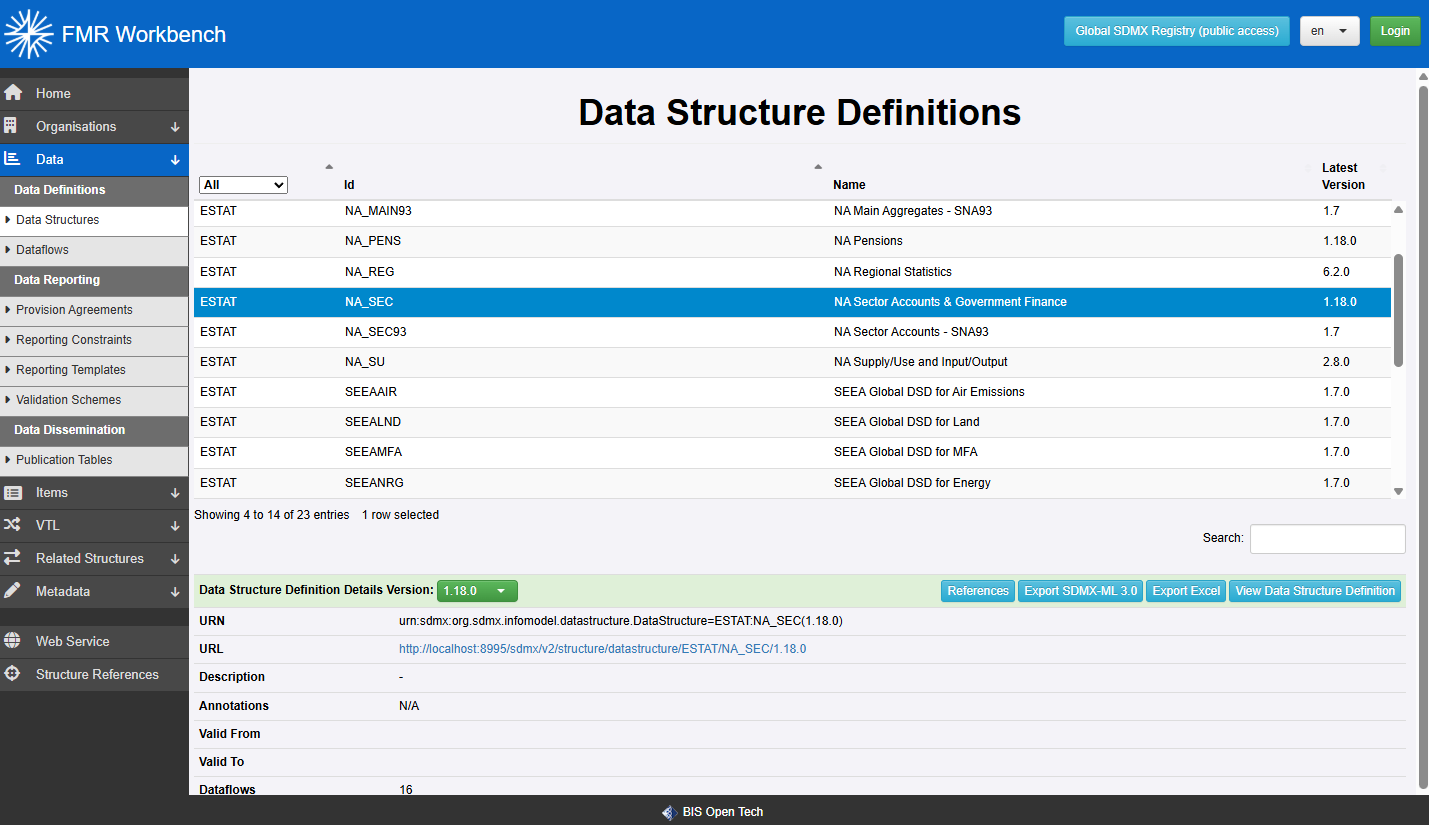
FMR Workbench (FWB) is a lightweight web application for browsing and maintaining SDMX structures exposed by SDMX-compliant structure web services.
It uses a simplified version of the Fusion Metadata Registry (FMR) user interface. Workbench focuses on structural metadata management, while the full FMR also includes features such as data validation, data conversion, and administrative pages.
One important difference is configuration. FMR stores configuration in a database, while Workbench reads its configuration from a file. FWB has no database requirement.
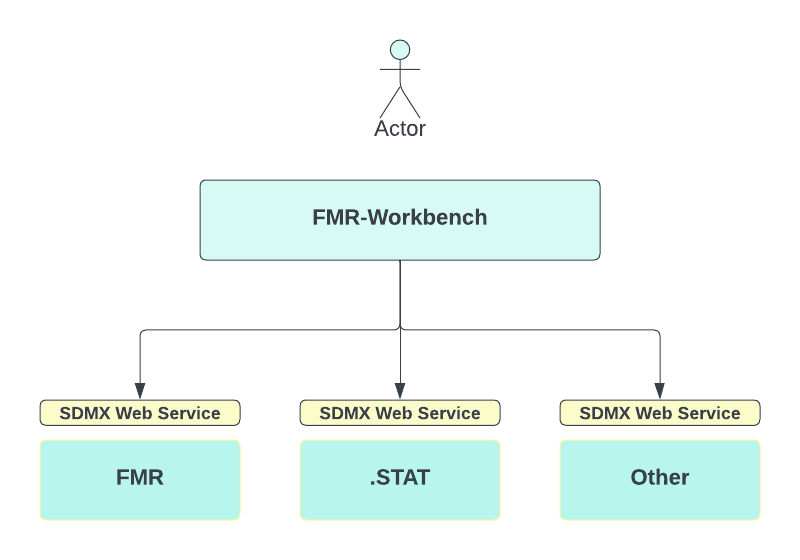
Workbench always operates against a selected Environment. An Environment is a named connection to a set of related SDMX web service endpoints for one service offering. These endpoints can include:
- a query endpoint for retrieving structures
- a persist endpoint for saving structures
- a delete endpoint for removing structures
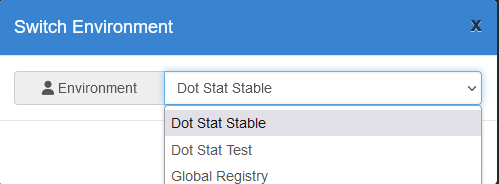
Users can switch between configured Environments in the UI. The selected Environment is stored per user session, so different users can work with different Environments at the same time.
Getting Started using Docker
- Get Docker Desktop
- At the operating system command prompt, run:
- Browse http://localhost:8080
- Modify the configuration file as described in the following sections
Configuration File
Workbench reads its settings from a configuration file named fwb_config.json.
An example configuration file is included with the software. Place the file in the following directory, creating the directory if needed:
<USER HOME>\MetadataTechnology\FusionRegistry
Example:
C:\Users\Matthew Nelson\MetadataTechnology\FusionRegistry
Configuration Layout
The configuration file has two sections:
PropertiesEnvironments
{
  "Properties": { /* server properties go here */ },
  "Environments": [ /* environment definitions go here */ ]
}
Properties
Workbench requires one server property: the public URL of the Workbench application. This tells the application where it is hosted so it can build links correctly and redirect users to the right pages.
Use localhost only for local testing where the browser and Workbench are running on the same machine. For a shared or production deployment, set this to the externally accessible URL.
Environment Definitions
Each object in the Environments array defines one Environment that users can connect to. The query endpoint is required. The persist and delete endpoints are optional and are only needed when the Environment supports structure maintenance.
An Environment also defines how Workbench should authenticate to that service, if authentication is required.
Example:
{
  "id": "DOT_STAT",
  "name": "Dot Stat Test",
  "api": {
    "query": "https://nsi-demo-reset.siscc.org/rest",
    "persist": "https://nsi-demo-reset.siscc.org/rest/structure",
    "delete": "https://nsi-demo-stable.siscc.org/rest",
    "version": "1.5.0"
  },
  "agencies": ["SDMX", "METATECH"],
  "auth": "OIDC_PKCE",
  "locale": ["en", "fr"],
  "oidc": {
    "config": "https://keycloak.siscc.org/auth/realms/OECD/.well-known/openid-configuration",
    "clientId": "app"
  },
  "format": "mlv2.1"
}
The following properties are available:
| Property | Description |
|---|---|
| id | Required Unique identifier for the Environment. It is also used by the REST API when switching Environments. |
| name | Required Display name shown to the user. |
| api | Required Contains the SDMX REST endpoints for this Environment. |
| api.query | Required Structure query web service endpoint. |
| api.persist | Optional Enables add and edit operations. Workbench sends HTTP POST requests to this URL. |
| api.delete | Optional Enables delete operations. Workbench sends HTTP DELETE requests to this URL. |
| api.version | Required Version of the SDMX REST API. Supported values are 1.5.0 and 2.0.0. |
| api.timeout | Optional Maximum time, in seconds, to wait for API responses. Defaults to 120 seconds. |
| format | Optional Format used when Workbench serialises structures for save operations. Supported values are mlv2.1, mlv3.0, jsonv1, jsonv2, and fusion. Use fusion when connecting to another FMR instance and you need support for both SDMX and FMR-specific structures such as Publication Tables and Reporting Templates. |
| locale | Optional Locales offered in the locale selector beside the Login button. |
| agencies | Optional Available agencies to show when the Environment does not support Agency Scheme queries. |
| auth | Optional Authentication method for the Environment. Supported values are NONE, BASIC, OIDC, and OIDC_PKCE. |
| oidc.config | Optional URL of the OpenID Connect provider's well-known configuration. |
| oidc.clientId | Optional Client ID registered for Workbench with the OpenID Connect provider. |
| oidc.clientSecret | Optional Client secret for confidential clients. Not needed when using PKCE. |
| oidc.scope | Optional OAuth scopes to request during login, for example "scope":"openid profile email". |
Note
The format property only controls how structures are serialised when Workbench sends changes back to the connected Environment.
Workbench does not request a specific format when querying structures, for example by setting the HTTP Accept header. Instead, it accepts the Environment's default response and identifies the format by inspection.
Apache Tomcat Deployment Example
If you are using Apache Tomcat, place the WAR file in:
<tomcat>\webapps
The WAR filename becomes the application context path. For example, if the file is named fwb.war, the application URL will be:
http(s)://[server]:[port]/fwb
Start Tomcat using bin\startup.bat on Windows or bin\startup.sh on Unix-like systems. You can also run Tomcat as a Windows service.
When Tomcat starts, it expands the WAR file into a folder of the same name under <tomcat>\webapps.
With a default local Tomcat installation, Workbench would typically be available at:
http://localhost:8080/fwb
This assumes:
- the browser is running on the same machine as Tomcat, so
localhostis correct - Tomcat is using its default port
8080 - the deployed file is named
fwb.war, so the context path is/fwb
If the configuration file is present, valid JSON, and includes the required properties, this URL will open the Workbench UI.
Switching Environments

The header bar shows the currently connected Environment. Select it to open the environment switcher and connect to a different service.
By default, the connection is anonymous. In that mode you can browse structures, but maintenance features may not be available. If the Environment supports authentication, select Login after connecting.
Authentication
Workbench supports Basic Authentication and OpenID Connect (OIDC). The authentication method is defined per Environment in fwb_config.json.
Basic Authentication
When the Environment uses BASIC, selecting Login opens the Workbench login page. The user enters a username and password, which are stored in the current session and used when Workbench calls the target service.
Workbench validates the credentials by making an initial request to the target service. If the credentials are rejected, they are discarded.
Configuration example:
OpenID Connect
When the Environment uses OIDC, selecting Login redirects the user to the configured identity provider. After successful authentication, the user returns to Workbench with a token, which is stored in the session and used for authenticated requests to the target service.
OIDC with PKCE
If your identity provider supports it, OIDC_PKCE is the preferred option. PKCE improves security by removing the need for a static client secret and helping protect the authorization code flow.
Configuration example:
"auth": "OIDC_PKCE",
"oidc": {
  "config": "https://keycloak.mydomain.org/auth/realms/myrealm/.well-known/openid-configuration",
  "clientId": "myapplication",
  "scope": "openid profile email"
}
Standard OIDC Authorization Code Flow
With OIDC, Workbench uses the standard authorization code flow. In this setup, Workbench sends the client_id and client_secret to the identity provider during the authentication process.
Configuration example:
"auth": "OIDC",
"oidc": {
  "config": "https://keycloak.mydomain.org/auth/realms/myrealm/.well-known/openid-configuration",
  "clientId": "myapplication",
  "clientSecret": "**********",
  "scope": "openid profile email"
}
Microsoft Entra ID
Microsoft Entra ID, previously Azure Active Directory, can be used as the OIDC identity provider. The standard authorization code flow is recommended.
Configuration example:
"auth": "OIDC",
"oidc": {
  "config": "https://login.microsoftonline.com/***************/v2.0/.well-known/openid-configuration",
  "clientId": "myapplication",
  "clientSecret": "**********",
  "scope": "openid profile email"
}
OIDC Troubleshooting
If authentication fails with:
invalid_client- Entra ID error
AADSTS7000218 The request body must contain the following parameter: 'client_assertion' or 'client_secret'
then the identity provider is not configured for PKCE. In that case, use standard OIDC authentication instead of OIDC_PKCE.
Disabling Authentication
To disable authentication for an Environment, set:
Browsing and Exporting Structures
Workbench displays structures using the same navigation model as FMR. For example, selecting Codelists in the sidebar opens the Codelist page and retrieves the available Codelists from the connected Environment.
When a user browses structures, Workbench forwards the relevant SDMX query to the connected service, reads the response, and then can return that content in any format supported by Workbench. This means users can export structures in formats such as Excel, SDMX, or JSON even if the connected service does not natively provide all of those formats.
You can also link directly to Workbench with a preselected Environment by adding the env query parameter:
You can link to a specific structure page in the same way:
https://fwb.sdmxcloud.org/items/conceptscheme.html?urn=urn:sdmx:org.sdmx.infomodel.conceptscheme.ConceptScheme=IMF:CS_BOP(1.11)&env=DOT_STAT_STABLE
If the linked page is a protected resource, Workbench redirects the user to log in first if needed.
Creating and Updating Structures
After logging in to an Environment that supports maintenance, users can upload structures from the Workbench home page or create and edit structures through the standard UI wizards.
Workbench shares the same UI components as FMR, but the connected service may not support every feature exposed by that UI. For example, Workbench may allow a user to build an SDMX 3.0 DSD with multiple measures, but the target service might reject that save request.
Workbench can import structures in any format it supports, including Excel. When saving to the target service, it converts the submitted structures into a format supported by the connected Environment.
SDMX Web Service Behaviour
Workbench exposes the same web service entry points as FMR, but these endpoints should not be treated as guaranteed fully compliant SDMX services.
Workbench forwards requests to the currently connected service and may adjust queries to improve compatibility with the target system. If the target service reports an error, Workbench may return a response equivalent to "no structures found".
For production integrations, it is recommended to use the target service's SDMX web services directly rather than relying on Workbench as an API layer.
Troubleshooting
If the Workbench home page does not load, first check the Apache Tomcat logs. Workbench also writes two application-specific log files:
FMRWorkbench.logcontains all Workbench logging atINFOlevel and above.FMRWorkbenchErrors.logcontains warnings and errors only.
To change the logging level, edit:
<tomcat home>\webapps\fwb\WEB-INF\classes\logback.xml