Configuring Active Directory
This page explains how to configure Fusion Metadata Registry (FMR) to authenticate users against Microsoft Active Directory (AD).
Active Directory authentication in FMR is LDAP-based. In practice, FMR connects to a domain controller, searches for the user account, and then attempts to authenticate that user with the password supplied at login. Because of this, the most important parts of the configuration are:
- the AD server and protocol (
ldaporldaps) - the AD domain name
- the Base Group DN used as the search root
- the User Search Filter used to locate the user object
If the server connection works but the Base Group DN or User Search Filter is incorrect, users may still be unable to sign in.
Before you start
Before configuring FMR, it helps to confirm the following with your Active Directory administrator:
- the DNS name of a reachable domain controller or LDAP endpoint
- whether the connection should use
ldaporldaps - the AD domain name, for example
example.org - where the target user accounts are located in AD
- whether users normally sign in with
userPrincipalNamesuch asalice@example.org,sAMAccountNamesuch asalice, or both
In most environments you should prefer:
- a host name rather than a raw IP address, so DNS and certificates work as expected
ldapswhere available, especially outside tightly controlled internal networks- the narrowest practical search base, so searches are faster and less likely to return multiple matching users
Settings overview
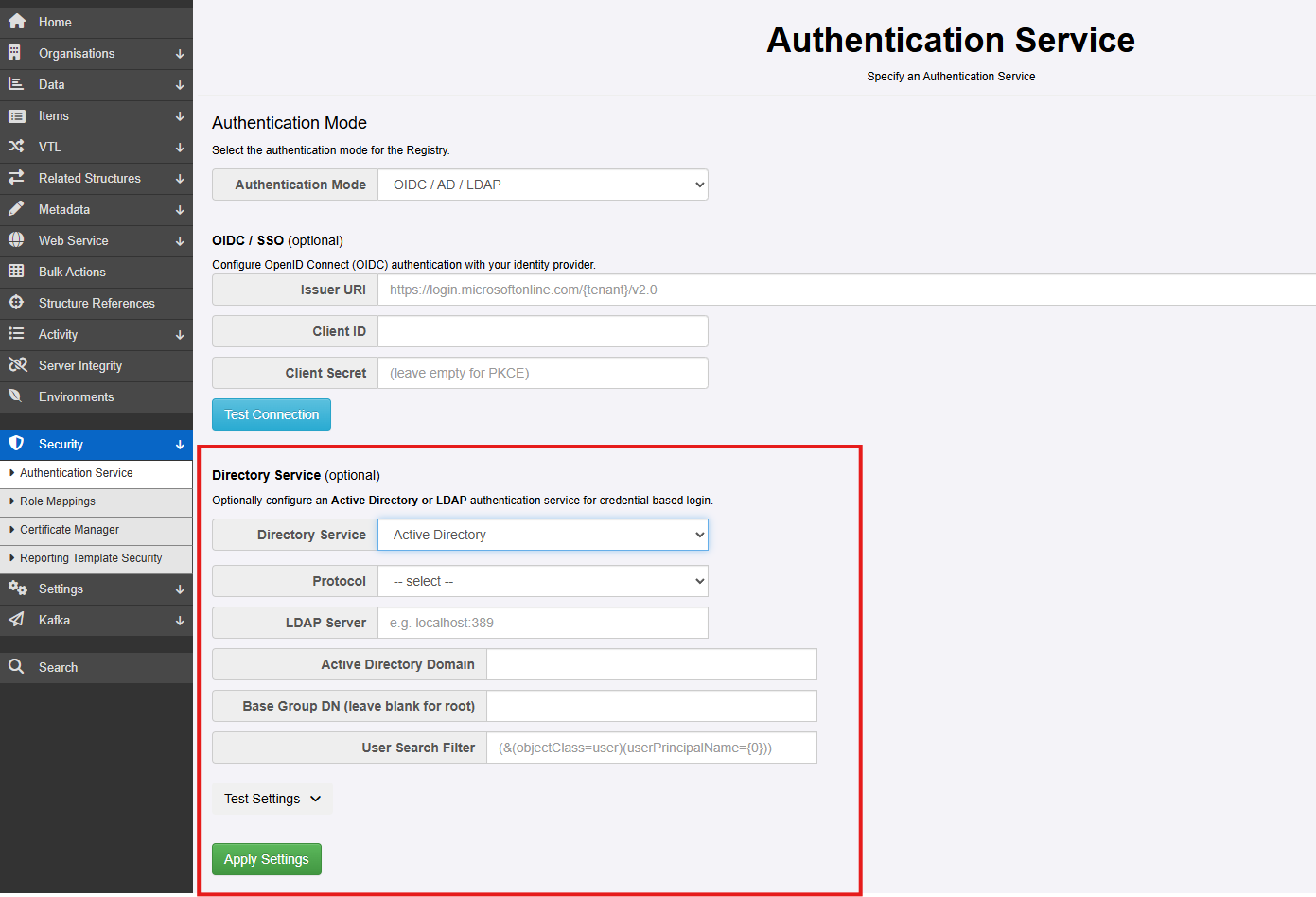
The Active Directory configuration page requires the following values:
| Setting | Description |
|---|---|
| Protocol type | Either ldap or ldaps |
| Server | The host name or IP address of the server hosting Active Directory |
| Active Directory Domain Name | The AD domain name, for example example.org |
| Base Group DN | Optional. The distinguished name (DN) that FMR should search beneath when locating users |
| User Search Filter | Optional. The LDAP filter used to identify the user object |
How FMR looks up a user
When a user enters credentials into the FMR login page, FMR constructs values that can then be used in the User Search Filter:
{0}is the bind principal{1}is the username exactly as typed by the user
The distinction matters:
- If the user types a value containing
@, then{0}is that value unchanged - If the user types a value without
@, FMR appends the configured AD domain name to create{0} {1}always remains the raw username entered by the user
For example, if the user enters Alice and the configured AD domain is bisorg.external:
{0}becomesAlice@bisorg.external{1}becomesAlice
This allows the search filter to support either userPrincipalName, sAMAccountName, or both.
Base Group DN
The Base Group DN defines where in Active Directory FMR starts searching for users.
If this field is left blank, FMR searches from the root of the directory tree. That can work, but it is usually better to provide a more specific value so that:
- searches are faster
- fewer irrelevant objects are considered
- the risk of ambiguous matches is reduced
Distinguished name structure
A distinguished name (DN) is built from directory components such as:
OUfor Organizational UnitCNfor Common NameDCfor Domain Component
For a search base, you will usually use OU and DC components.
When writing a DN:
- the lowest-level OU appears first
- parent OUs follow after that
- domain components appear last
For example, if users are located under:
- domain:
bisorg.external - parent OU:
fusion - child OU:
Registry
then the search base is:
Choosing a good Base Group DN
As general AD and LDAP practice:
- use the smallest subtree that contains all users who should be able to sign in
- avoid using a DN that is so broad it covers the whole domain unless that is genuinely required
- avoid pointing the search base at a container that does not contain user objects
- confirm the DN in AD administrative tools or with directory query tools before entering it into FMR
If users are spread across multiple parts of the directory, a broader Base Group DN may be necessary. In that case, pay extra attention to the User Search Filter so that only the intended user object is matched.
User Search Filter
The User Search Filter tells FMR how to find the user object in Active Directory. FMR passes the filter directly to LDAP, so the value must be a valid LDAP search filter.
If the filter is too broad, multiple users may be found and authentication will fail. If it is too narrow or references the wrong attribute, the user will not be found.
If this field is left blank, FMR uses:
This means:
- the object must be an AD user
- the
userPrincipalNamemust match the bind principal derived from the login name
Supported placeholders
The following placeholders are available in the filter:
{0}for the bind principal, for exampleAlice@bisorg.external{1}for the raw username, for exampleAlice
Recommended patterns
If users always sign in with their full UPN, the default filter is often sufficient:
If users may sign in with either UPN or short username, a more flexible filter is often better:
This instructs AD to find an object of class user where either:
userPrincipalNamematches the bind principal, orsAMAccountNamematches the username only
This is a common and practical pattern in AD environments because:
- many users know their short Windows username
- some environments do not populate
userPrincipalNameconsistently for all accounts - login habits often vary between administrators and end users
Good LDAP filter practice
When defining the filter:
- make sure the filter returns one user only
- prefer attributes that are stable and unique for sign-in, such as
userPrincipalNameorsAMAccountName - do not rely on display names or common names such as
cn, which are often not unique - keep the filter as simple as possible while still matching your sign-in conventions
Common configuration approach
For many AD environments, a good starting point is:
- Protocol:
ldaps - Server: the DNS name of a domain controller
- Active Directory Domain Name: your AD DNS domain, for example
bisorg.external - Base Group DN: the OU subtree containing your user accounts
- User Search Filter:
(&(objectClass=user)(|(userPrincipalName={0})(sAMAccountName={1})))
This gives users flexibility in how they enter their username while keeping the lookup tied to standard AD identity attributes.
Testing the Active Directory settings
Since version 11.17.0, FMR provides a Test Settings function on the Active Directory configuration page. This is the quickest way to verify whether the connection, search base, and user search filter are correct for your environment.
When you click Test Settings, an additional section appears where an administrator can enter a user ID and password. You can change the AD settings on the page and test again immediately, which makes it easier to refine the configuration.
When the Test User button is clicked, FMR attempts to authenticate the supplied user with the current AD settings.
Example: unable to communicate with Active Directory


These errors usually indicate one of the following:
- incorrect server name or port
- the domain controller is unreachable from the FMR server
- firewall or network restrictions
- TLS or certificate issues when using
ldaps
Example: incorrect password

This normally means:
- the user was found successfully
- the password supplied for that user was incorrect
This is useful because it confirms that the search base and user search filter are probably correct.
Example: user not found because the Base Group DN is incorrect

This usually means:
- FMR connected to AD successfully
- the configured search base did not include the user object
- or the search filter did not match the user within that part of the directory
Example: too many users found

FMR requires the search to resolve to a single user. This error usually indicates:
- the Base Group DN is too broad
- the User Search Filter is not selective enough
- the selected LDAP attribute is not unique in the searched subtree
Example: successful authentication
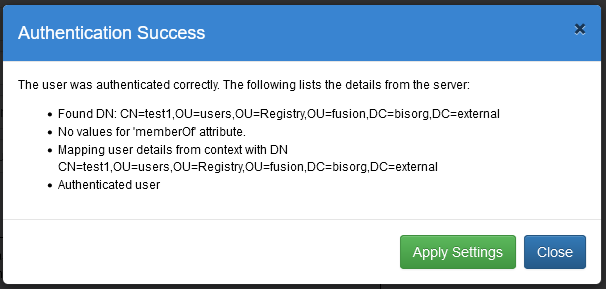
This confirms that:
- FMR could reach Active Directory
- the user was found successfully
- the supplied password was accepted by AD
Troubleshooting with Active Directory tools
If you still need help determining the correct values, AD query tools can be very useful.
Using dsquery
dsquery is a Windows command-line tool that can query Active Directory for users, groups, computers, and other directory objects.
To find a user by sAMAccountName:
You can also test an LDAP filter directly. For example:
Example output:
This helps confirm:
- whether the filter matches the intended object
- the distinguished name of the user
- where in the directory tree that user resides
Using PowerShell Get-ADUser
PowerShell can also help you inspect the attributes used by your search filter.
To retrieve a user's sAMAccountName:
You may also find it useful to inspect additional attributes such as DistinguishedName and UserPrincipalName so you can confirm:
- the correct search base
- the correct sign-in attribute
- whether the values in AD are populated as expected
General AD and LDAP good practice
The following recommendations usually make AD-backed authentication easier to manage:
- Prefer
ldapsfor production deployments - Use DNS host names rather than IP addresses where possible
- Keep the Base Group DN as narrow as is practical
- Use sign-in attributes that are unique and well understood by your users
- Test with several representative user accounts before rolling the change into production
- If users are authenticated successfully but cannot perform actions in FMR, review the Role Mappings configuration separately
For guidance on secure LDAPS connectivity and certificate handling, see ConfiguringForLdaps.md.