FusionXL Install
Option 1 - Using XLSTART folder
Copy the XLAM file to the Excel sub directory folder XLSTART as shown in the example path below:
C:\Users\[your user name]\AppData\Roaming\Microsoft\Excel\XLSTART
Files in this folder are automatically loaded when Excel starts.
Option 2 - Using Excel's add-in maintenance facility
Copy the XLAM file to the Microsoft AddIns folder:
C:\Users\[your user name]\AppData\Roaming\Microsoft\AddIns
Register the add-in with Excel by selecting the Options menu, then choosing Add-Ins.
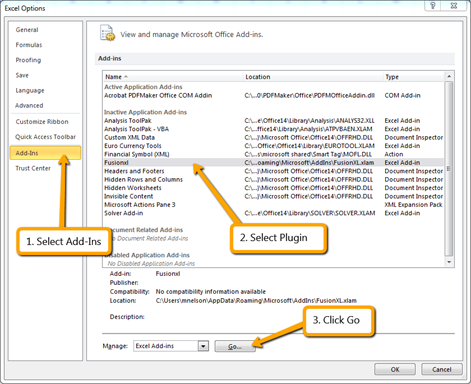
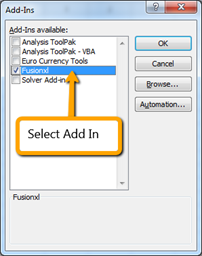
After clicking Go an Add-Ins window will be displayed which will show FusionXL as an available add-in. Select this add-in and click OK.
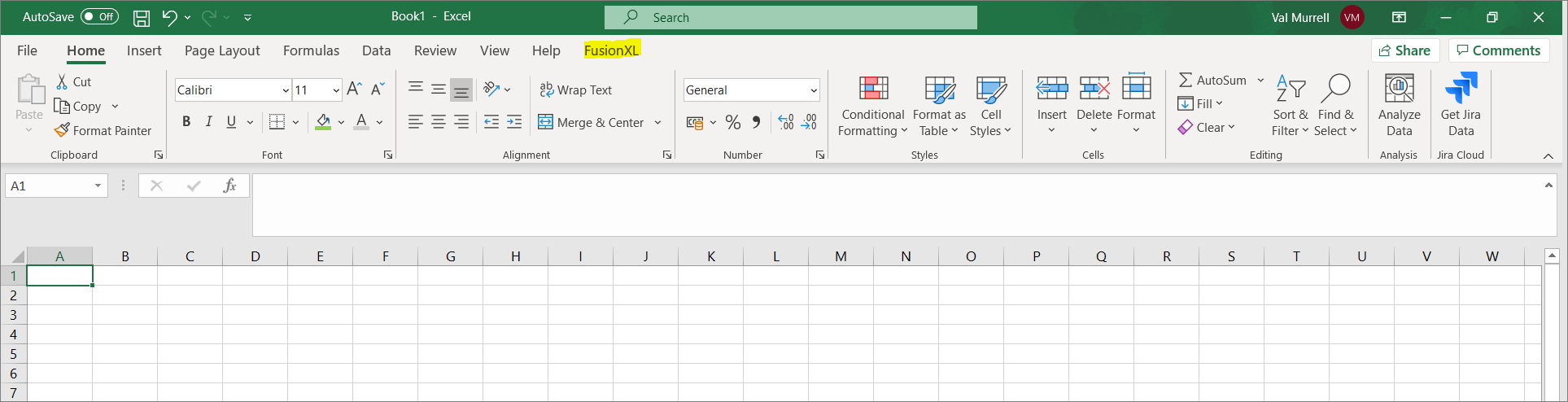
After clicking OK, restart Excel to see the RXL tab as shown in the image above.
You are now ready to connect FXL to a Registry.
Troubleshooting
The FXL addin disappears or fails to load
A possible cause is Windows file protection security settings blocking the FXL.xlam file as it has originated from another computer. The following YouTube video explains how to solve the problem by disabling Windows protection on the file: https://www.youtube.com/watch?v=AhnOU-ulqNg
Macro Disabled
As above.