Report Attributes Via Reporting Templates
Overview
In this example the Data Structure has an Attribute relating to the confidentially status of the reported data. This article assumes that you have a basic understandin of how to create a Template using the GUI as explained in this article - How to create a Reporting Template.
Creating the Reporting Template
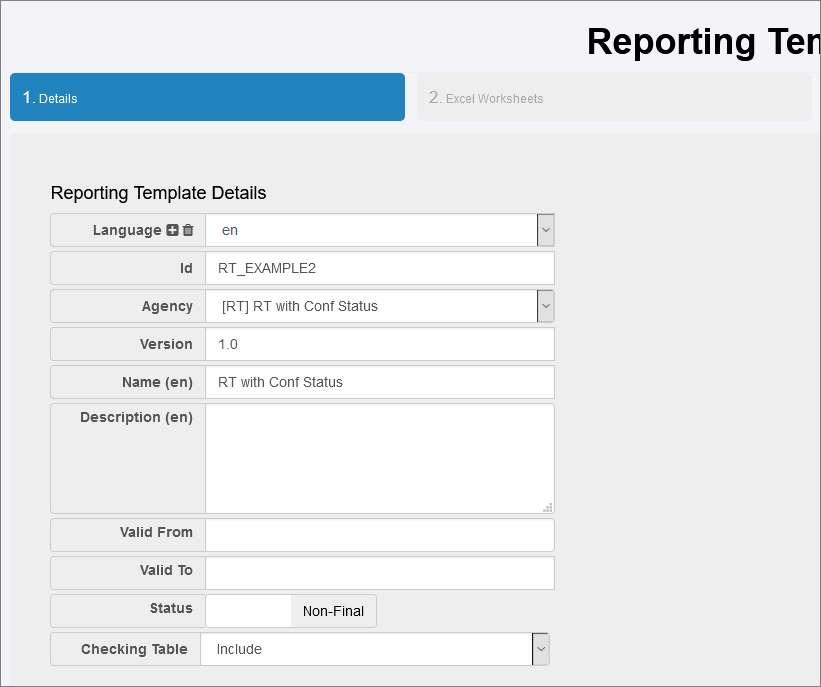
The template wizard is created in the usual way for the first 3 steps as shown in the example below.
Step 1
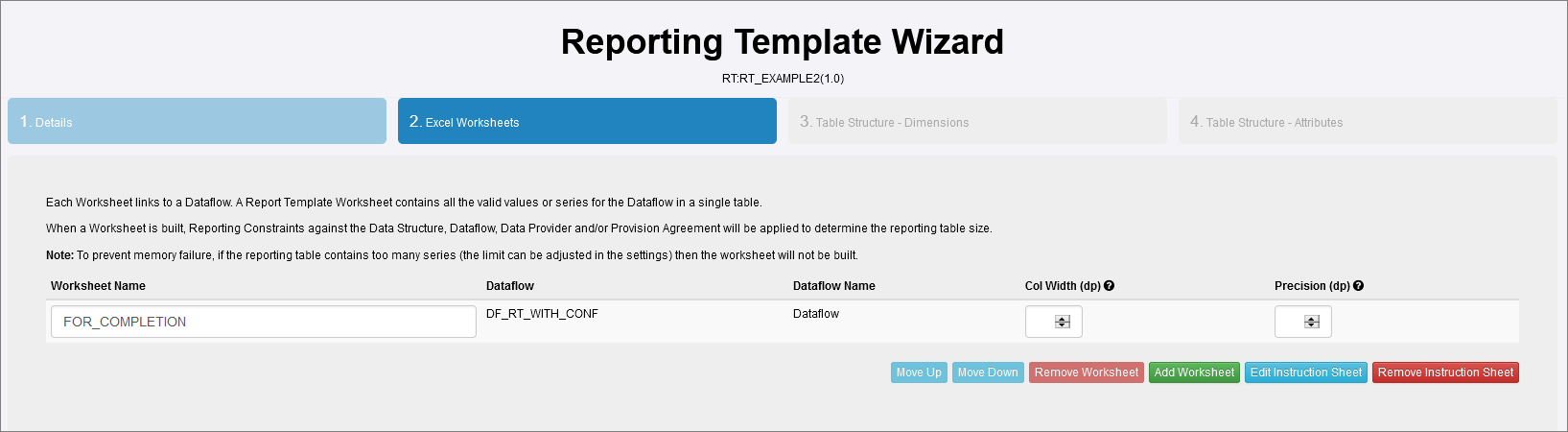
Step 2
Allows the insertion of an instruction worksheet which will appear (in a separate worksheet in the generated Excel workbook when the Reporting Template is generated). You can use this to provide instructions for completion.
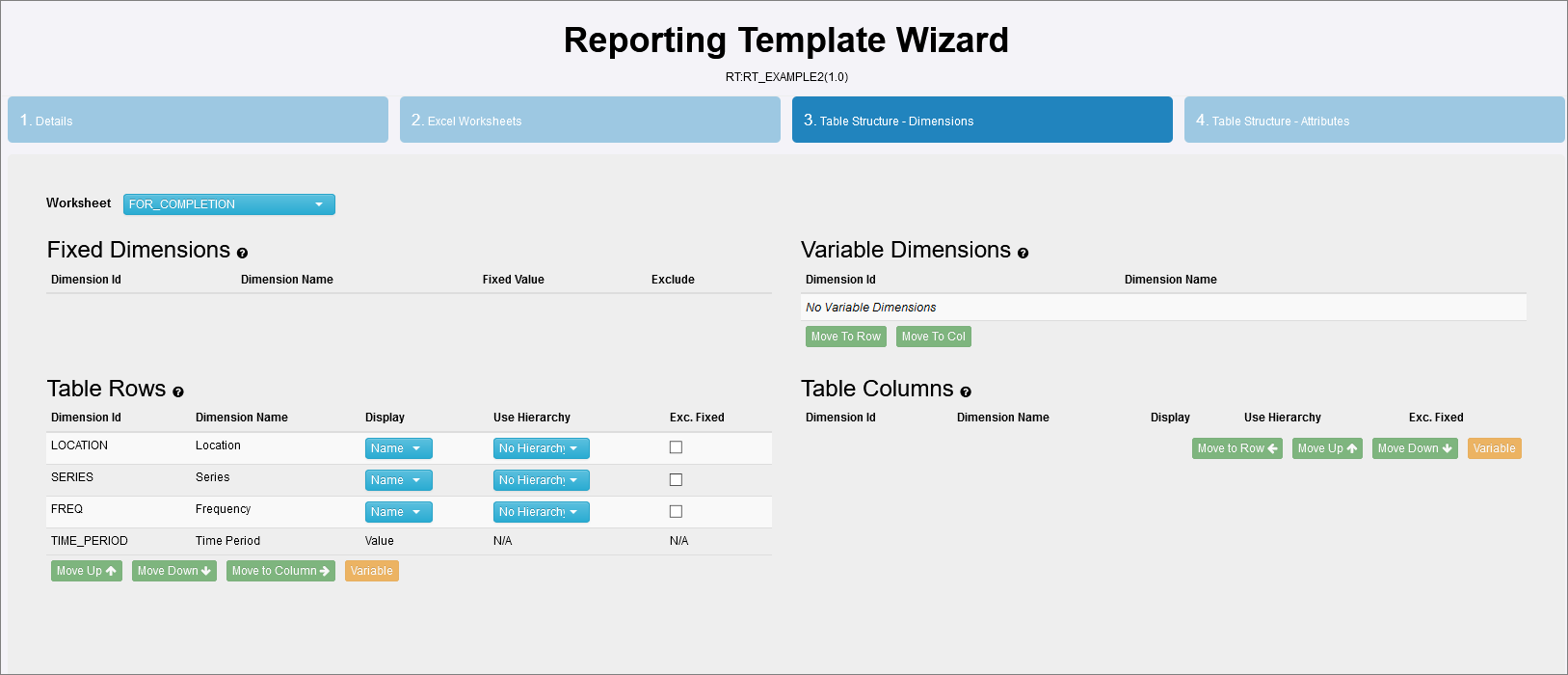
Step 3
Step 4 - Attribute Placement
In this example, I have selected Use Colour to represent and selected 3 items to include as shown in the example below.
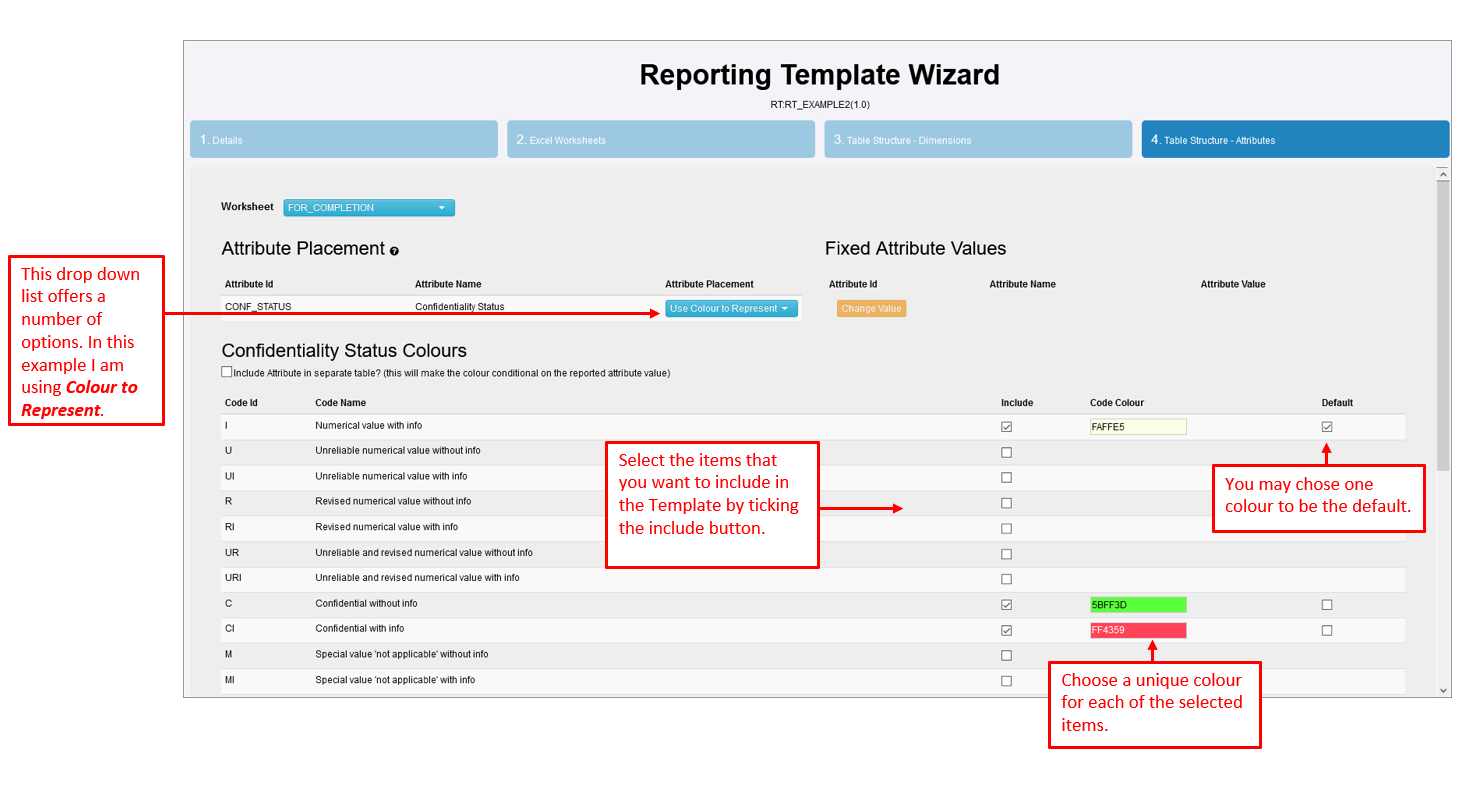
Note: as from Version 11.4, it is no longer possible to use the 'colour picker' insted, just enter the HEX code. The selected colour will appaer lower down the page.
Reporting Template Excel Workbook
The Reporting Template is save and generated in the usual way. When the workbook is opened, you will seen 3 separate worksheets as well as the colour coding legend that was added in step 4.
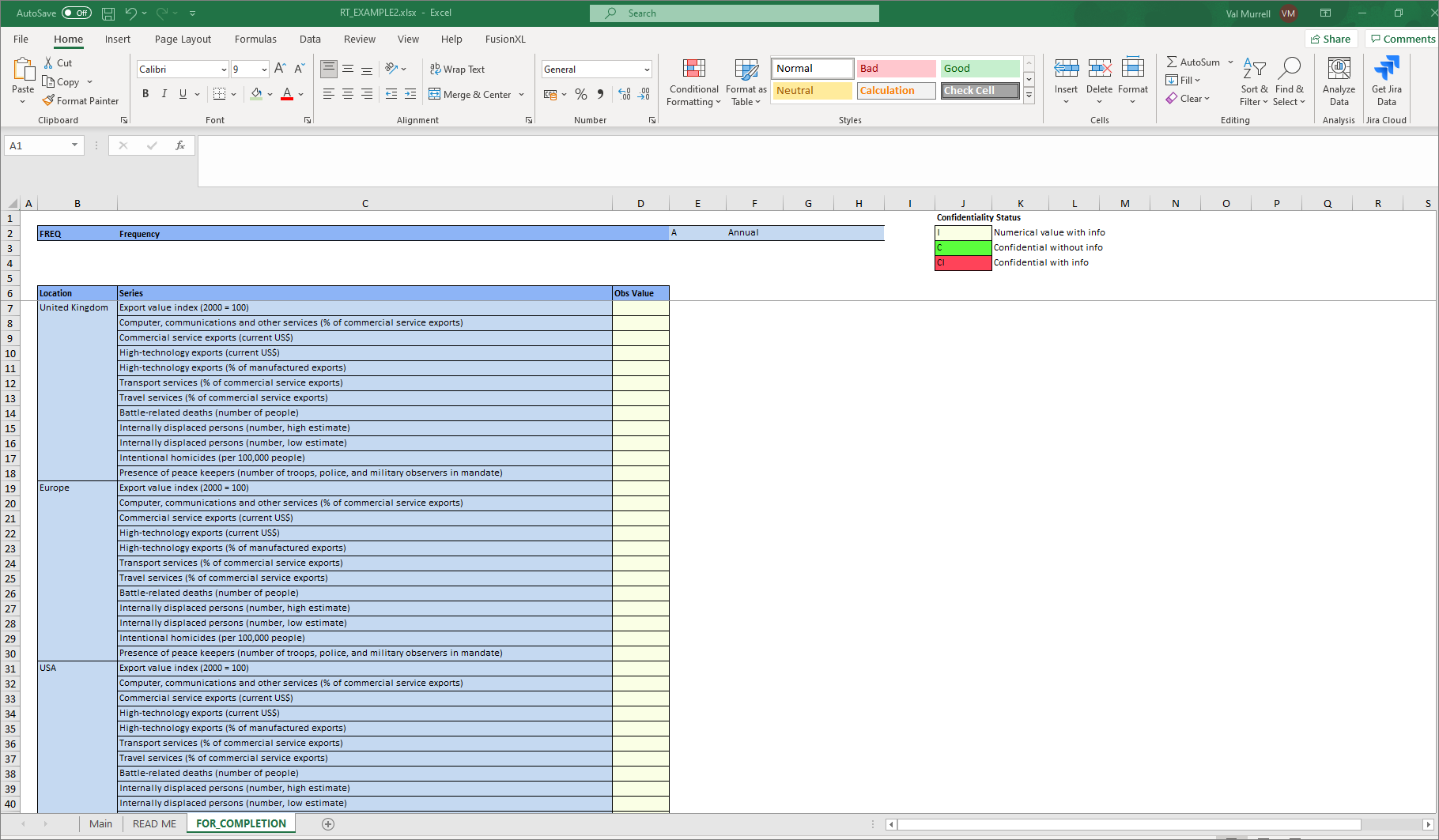
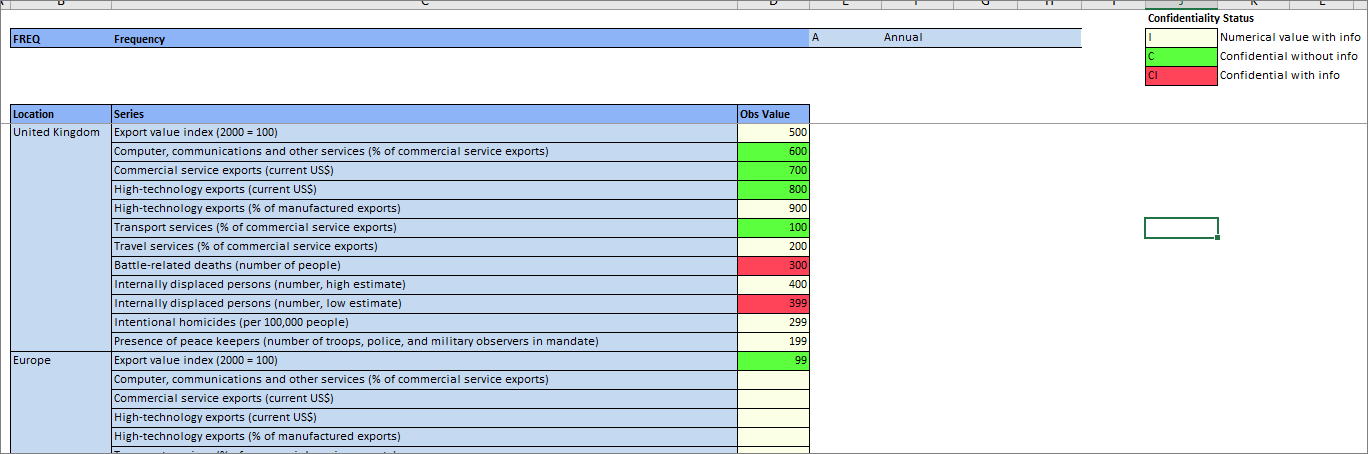
Note the default colour appears in the Obs Value cells. A completed worksheet might look like this.
Convert the data
The next step is to convert the spreadsheet into a XML file via either the Load from file option or the quick convert option as shown aside.
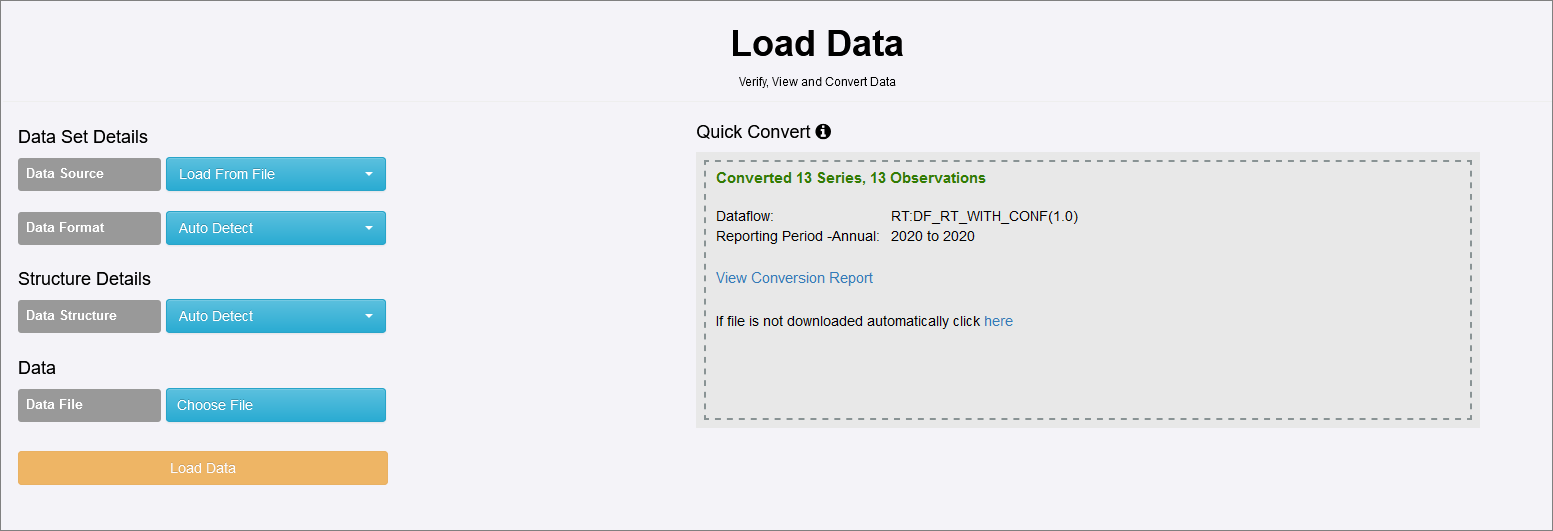
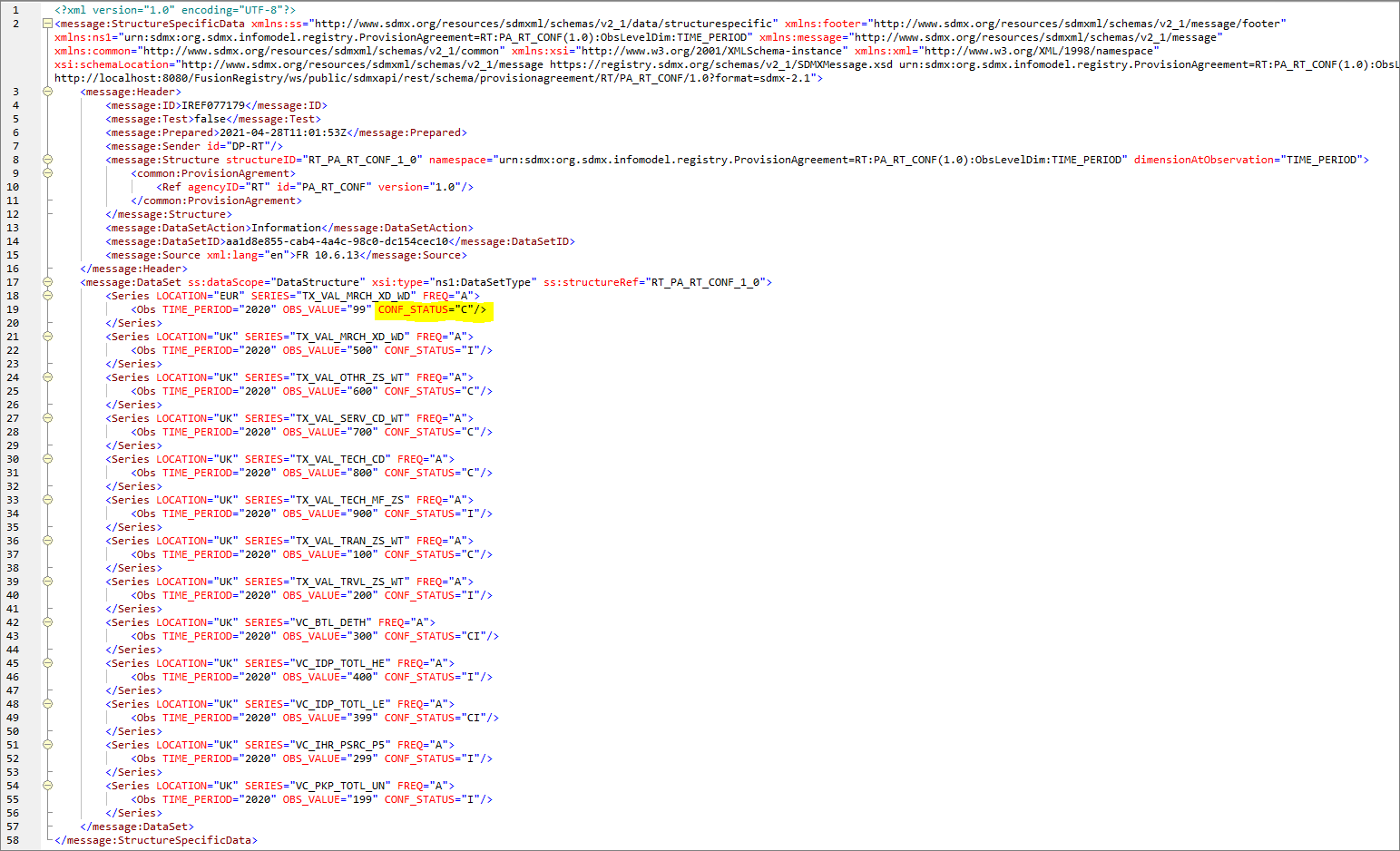
If you open the XML file and view using Pretty Print (I am using XMLSpy) you will see that the colour coding has taken affect and the correct codes are included against the Attribute CONF-STATUS.